
Troubleshooting
Windows Server error code 0x3 (extended error 0x11): what it means and how to fix it
Windows error 0x3 means 'The system cannot find the path specified'. On servers it usually appears alongside an extended error code such as 0x7, 0x10 or 0x11, during scheduled tasks, backups, drive mappings or remote connections. The cause is typically a wrong path, missing permissions or a network problem reaching a share.
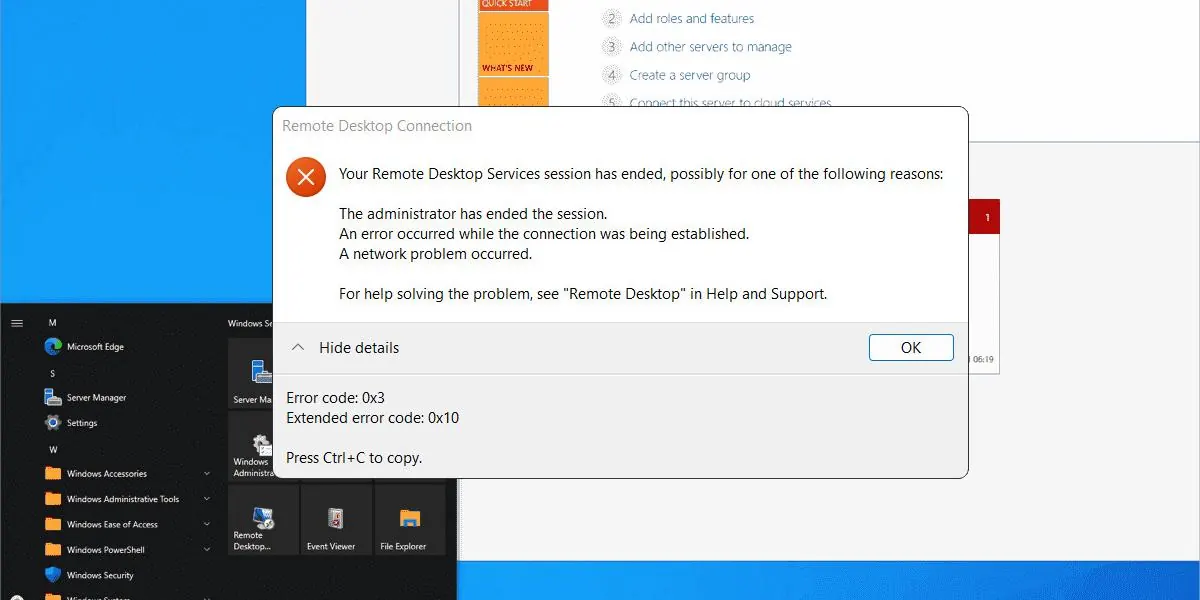
If you run Windows Server, an error like 0x3 with an extended code (0x7, 0x10, 0x11 and so on) can stop a backup, a script or a remote connection cold. These codes don't explain themselves, and they often show up during routine maintenance, backups or network drive mapping.
What could be causing it?
The message usually looks like this:
Error 0x3: The system cannot find the path specified.
(Extended Error Code: 0x11)
It commonly appears in:
- Scripted tasks like backups or scheduled jobs
- Access to shared folders over the network
- Drive mapping through login scripts or Group Policy
- Application services that rely on UNC paths
- Remote Desktop connections
It may point to a missing file path, but it can also hide deeper network or permissions issues.
Quick things to try first
- Double-check the path. Make sure the folder or UNC location exists and hasn't been renamed or moved.
- Run the script or task manually. If it works manually but not on a schedule, the task account or working directory is the likely cause.
- Check permissions. The account running the process needs access to the path, especially over the network.
- Ping the server or endpoint. If the target isn't reachable, the path won't be found.
- Check Event Viewer. Look for system or application events at the same timestamp.
- Temporarily test without security software. Some endpoint tools block network paths without obvious alerts. Re-enable it immediately after testing.
Diagnostic commands
If you want to dig further, these commands help narrow it down:
net use
net use * /delete
ipconfig /all
ping yourserver.domain.local
Test-NetConnection yourserver -Port 445
whoami /groups
net share
netstat -an | find "445"
Get-SmbConnection
Get-EventLog -LogName System -Newest 50
Get-EventLog -LogName Application -EntryType Error -Newest 100
More advanced checks:
dfsutil diag viewdfspolicy
fsutil fsinfo drives
reg query HKLM\SYSTEM\CurrentControlSet\Services\LanmanWorkstation
sc queryex LanmanWorkstation
net config workstation
nltest /dsgetdc:yourdomain
nltest /sc_verify:yourdomain
Test-Path \\servername\sharename\folder
Get-Acl \\servername\sharename\folder
Sysinternals tools are useful too: Process Monitor to trace file access, PsExec to test as another account, and AccessChk to validate permissions.
Still stuck?
If none of that solved Windows Server error 0x3 (extended code 0x11), you've probably reached the point where DIY isn't worth the time. Star X can connect to your server remotely, trace the root cause and get you back online. We support businesses in Richmond, Delta, Vancouver, Surrey and across the Lower Mainland. Call (778) 312-2227 or see our on-demand IT help desk.
Questions we hear a lot
Still unsure? Call (778) 312-2227 and ask a technician directly.
What does error 0x3 mean in Windows?
It's ERROR_PATH_NOT_FOUND: Windows was asked to open a folder or file path that it couldn't find or reach. The path may be wrong, the share may be unavailable, or the account may not have access.
Why does my scheduled task fail with 0x3 but work when I run it manually?
Scheduled tasks often run under a different account, without mapped drives and with a different working directory. Use full UNC paths (\\server\share\folder) instead of drive letters, set the 'Start in' folder, and check the task account's permissions.
Stop fighting your IT. Hand it to us.
Call now for urgent problems, or book a free, no-obligation IT assessment for your office.